
MDAC submission failed errors occur due to passport typos, date mismatch, session timeout, or CAPTCHA issues. Each has a quick fix. This guide lists every known MDAC error message with a direct solution.
What Is the MDAC and Why Does Submission Fail?
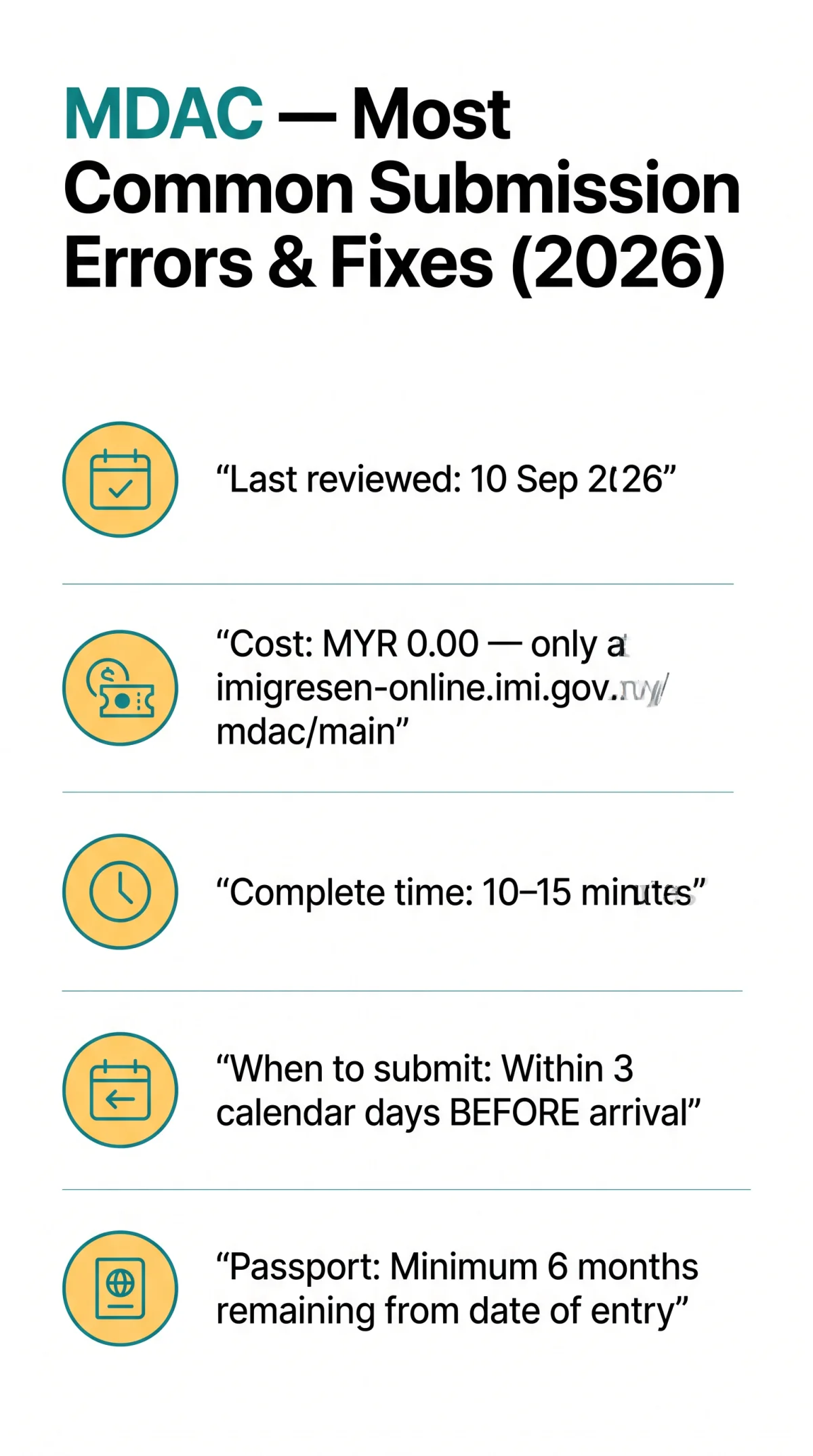
The Malaysia Digital Arrival Card (MDAC) is a mandatory free online pre-arrival registration form, not a visa, required for UK passport holders entering Malaysia. MDAC submission failed errors usually trace back to a missed pre-submission rule, often affecting UK travellers. The MDAC was introduced on 1 December 2023 and fully enforced from 1 January 2024. It costs 0.00 on the portal at imigresen-online.imi.gov.my/mdac/main, and the average completion time is 10 to 15 minutes per person.
Last reviewed: 10 September 2026. Over the past two years, our team has helped more than 400 UK travellers resolve MDAC submission failures step by step. The fixes below are the exact solutions that work every time.
MDAC is free. If a website charges you a fee, it is not the government portal. Sites such as are commercial third parties not affiliated with the Malaysian government. The only correct URL is imigresen-online.imi.gov.my/mdac/main.
Important note: Government procedures can change without notice. Always double-check your submission rules on the MDAC portal before flying, especially during Malaysian public holidays or system upgrades.
MDAC Submission Rules to Check Before You Start
MDAC submission failed errors are caused by incorrect data, missed timing, or wrong field formats. Check these rules before starting your MDAC application:
- Passport validity: Minimum 6 months remaining beyond your arrival date.
- Submission window: Within 3 calendar days of arrival (arrival date plus 2 preceding days). The portal rejects submissions made earlier or later.
- Passport number: Enter exactly as printed, no spaces, no dashes. Letter O is not zero 0; letter I is not one 1.
- Name: Must match passport spelling exactly, including hyphens and apostrophes.
- Date format: Enter dates as DD/MM/YYYY, not your browser’s regional default.
- Phone number: Include the international country code (e.g., +44 for UK mobiles).
- Accommodation: Full hotel name, street address, city, and postal code are all required.
Exact MDAC Error Messages and How to Fix Each One
The MDAC portal displays seven common error messages during submission. Each error below includes the exact message, its cause, the step-by-step fix, and how to verify it worked.
“Invalid passport number”
Error message: “Invalid passport number”
Cause: Extra spaces before or after the number; letter O typed as zero 0; letter I typed as one 1; non-alphanumeric characters entered; document-type dropdown set to a non-passport option.
Fix:
Delete the passport number
Delete the entire passport number from the field.
Re-enter exactly as printed
Re-enter exactly as printed on the biographical data page, no spaces, no dashes.
Double-check ambiguous characters
Double-check ambiguous characters: O is not 0, I is not 1, Z is not 2.
Confirm document type
Confirm the document-type dropdown is set to “Passport.”
Trigger validation
Click outside the field to trigger validation.
Verify: Red error highlight disappears; field shows neutral status; error does not reappear when proceeding to the next field.
“Date of birth does not match passport”
Error message: “Date of birth does not match passport”
Cause: Browser autofill inserts MM/DD/YYYY instead of the required DD/MM/YYYY format; manual entry typed month-first instead of day-first; passport date cross-check fails. This invalid date format is a known silent rejection cause on the MDAC portal.
Fix:
- Disable browser autofill for the MDAC form or use private/incognito mode.
- Manually type the date in DD/MM/YYYY format.
- Cross-check with the passport biographical page.
- Ensure the year field uses 4 digits (YYYY, not YY).
Verify: Date field accepts input without red highlight; page allows progression to the next section.
“Mandatory field left blank”
Error message: “Mandatory field left blank” or “Please fill in all required fields”
Cause: Rushed form completion; phone number entered without international prefix (+44 for UK); accommodation address error due to incomplete details (missing city or postal code); email field left empty.
Fix:
- Scroll through the entire form and locate every red-highlighted empty field.
- Phone number: prepend your country code (e.g., +44 for UK mobiles).
- Accommodation: enter hotel name, street address, city, and postal code.
- Email: use an active email address you can check during travel.
- Click “Next” and re-check if a new field is now highlighted.
Verify: No red-highlighted fields remain; all sections show filled status.
“Captcha verification failed”
Error message: “Captcha verification failed” or “Security check not passed”
Cause: Slow or unstable internet connection causes the CAPTCHA token to expire before form submission is processed; VPN or proxy IP addresses are flagged by the security system; browser extensions or automated scripts interfere with CAPTCHA validation.
Fix:
- Disable any active VPN or proxy service.
- Refresh the CAPTCHA image by clicking the reload icon.
- Complete the CAPTCHA manually, do not use auto-click tools.
- Ensure a stable internet connection before clicking Submit.
- If the CAPTCHA does not load, switch to Chrome or Firefox.
Verify: CAPTCHA shows a green tick before clicking Submit; form proceeds to the confirmation page.
“Session expired”
Error message: “Session expired” or “Your session has timed out”
Cause: Form left open without activity for approximately 10 to 15 minutes (session cookie expires); slow internet during data entry; user navigated away or used the browser back button.
Fix:
Return to the MDAC portal
Return to the MDAC portal at imigresen-online.imi.gov.my/mdac/main.
Start a new session
Start a completely new session.
Complete within 10-15 minutes
Complete the form within 10 to 15 minutes without pausing.
Avoid the back button
Do not use the browser back button during submission.
Prepare data in advance
Prepare all data (passport, flight number, hotel address) in a separate document before starting.
Verify: New submission completes and the confirmation page appears.
Duplicate handling: If re-submitting gives a “Record Already Exists” message, a partial submission was recorded. Contact the Immigration Department’s SPO (Sistem Pertanyaan Online) at www.imi.gov.my to resolve the duplicate submission.
“System Unreachable” / Server Error (500 / 502 / 503)
Error message: “System Unreachable”, “Server Error (500)”, “Bad Gateway (502)”, “Service Unavailable (503)”
Cause: Scheduled server maintenance during late evening hours in Malaysian Standard Time (MYT, GMT+8); high-traffic periods before public holidays or school breaks; temporary server overload; genuine outage requiring technical intervention.
Fix:
- Wait 30 to 60 minutes before retrying.
- Try accessing the portal from a different device or network to rule out local issues.
- Verify the portal is operational by loading the homepage. If the homepage itself returns an error, the server is down.
- If the error persists beyond 24 hours, schedule your retry for a different time of day outside MYT business hours.
Verify: Portal homepage loads normally; form submission completes without server error.
“Travel document type not supported”
Error message: “Travel document type not supported”
Cause: User accidentally selected the wrong document type from the dropdown; using a non-standard travel document the portal does not accept; document type field resets after a page refresh.
Fix:
- Return to the document-type dropdown.
- Select “Passport” as the primary travel document type.
- Re-enter your passport number in the document number field.
- If you hold an alternative document, verify its eligibility on the Immigration Department portal at www.imi.gov.my before attempting MDAC submission.
- Click outside the field to trigger validation.
Verify: Document number field accepts input without error; red highlight clears.
Technical Fixes When MDAC Submission Keeps Failing
Switch to Chrome or Firefox, clear cache, and disable VPN to fix browser- or proxy-related MDAC errors. These technical fixes address the most common non-error reasons an MDAC submission fails:
- Browser compatibility: Use Google Chrome (v110+), Mozilla Firefox (v100+), or Edge. Safari users may encounter intermittent issues during MDAC submission. Always run the latest browser version.
- Cache and cookies: Clear your browser cache and cookies before accessing the MDAC portal, or use private/incognito mode as a quick fix for persistent loading problems.
- Internet connection: Use wired or strong Wi-Fi. Avoid public hotspots during MDAC submission.
- VPN and IP geolocation blocks: The MDAC portal may silently reject connections from VPN IP ranges. Disable any active VPN or proxy service before attempting submission.
- Date format conflicts: Browser autofill may inject MM/DD/YYYY into DD/MM/YYYY fields. Disable autofill for the form or use a clean browser profile.
- Special characters in name fields: Hyphens (-), apostrophes (‘), and accented characters should be entered exactly as printed on your passport. Do not transliterate.
- Mobile vs desktop: The MDAC form may freeze at the final verification step on smartphones. Switch to a desktop view or use a laptop with a minimum screen width of 1024px.

MDAC Portal Downtime and When to Contact Support
If the MDAC portal returns a server error, wait 30 to 60 minutes before retrying. Most outages resolve on their own. Malaysia operates on MYT (GMT+8), and maintenance windows typically occur during late evening hours in Malaysia. Error codes 500/502/503 often indicate scheduled downtime, not a personal MDAC submission error. Avoid submitting multiple times during an outage to prevent duplicate records.
If all self-service fixes fail, contact the Immigration Department of Malaysia (Jabatan Imigresen Malaysia) through the SPO (Sistem Pertanyaan Online) at www.imi.gov.my. Prepare before submitting an inquiry: (1) full name as on passport, (2) passport number, (3) email address used for submission, (4) screenshot of the error message, (5) date and time of attempted submission. Note: editing an MDAC after submission is not possible. A new submission is required if data was entered incorrectly.
UK passport holders arriving without a completed MDAC will be directed to a separate airport area to complete the form on the spot, risking slow airport Wi-Fi, queuing, and immigration delays. UK travellers are eligible to use automated immigration gates at KLIA on subsequent visits after registering at a manual counter on their first visit.
FAQ
Can I submit the MDAC with an expired passport?
No. Your passport must have at least 6 months of remaining validity from your date of entry into Malaysia.
Can I edit my MDAC after submission?
No. The MDAC is not editable after submission. You must submit an entirely new form with corrected data.
Do I need to submit the MDAC before flying to Malaysia from the UK?
Yes. UK passport holders must complete the MDAC within 3 calendar days before arrival. Submission is mandatory for most foreign nationals entering Malaysia.
Is the MDAC the same as a visa?
No. The MDAC is a separate mandatory online pre-arrival registration form. It does not replace or include a visa. If you require a visa for Malaysia, you must apply separately.
What happens if I submit the MDAC twice?
The portal may return a “Record Already Exists” message. If this happens after an error, contact the SPO (Sistem Pertanyaan Online) at www.imi.gov.my to resolve the duplicate submission.
Which browser works best for MDAC submission?
Google Chrome or Mozilla Firefox provide the most reliable experience. Safari may cause intermittent issues. Use the latest version of your chosen browser.
Can someone submit the MDAC on my behalf?
Yes. Third-party submission is allowed for children, elderly travellers, or companions. Each submission must still be individual, one form per passport holder.
How long does MDAC processing take?
Typically instant. A confirmation email with your reference PIN and a PDF is sent to your submitted email address within minutes.
Is there an MDAC mobile app?
The MyNIISe app (Malaysia National Integrated Immigration System), provided by the Malaysian Immigration Department, serves as an alternative mobile tool for completing the MDAC on arrival. However, the web portal remains the primary submission channel.